Connectivity

What to do when you cannot connect to the internet in Japan

No internet in Japan? Diagnose Wi-Fi login, roaming, eSIM, APN or weak-signal problems, reconnect safely and keep an offline route and emergency backup.

Last updated:

10-second answer

What to do right now

Use trusted Wi-Fi first, identify whether Wi-Fi, the selected data line, roaming, APN or local signal is failing, then change one setting at a time before buying another plan.

  1. 1Get a trusted connection and save the error
  2. 2Check the selected data line and provider settings
  3. 3Restart once, then contact the provider
Detailed steps

Follow these steps

1

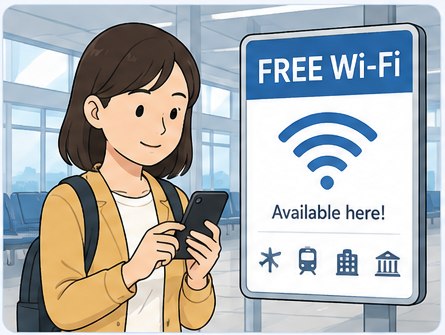
Get a trusted connection and save the error

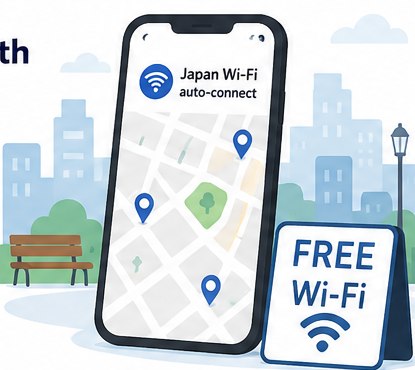
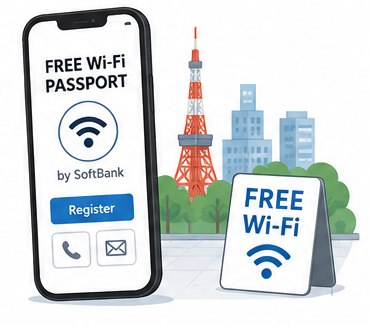
Traveler finding an official free Wi-Fi sign

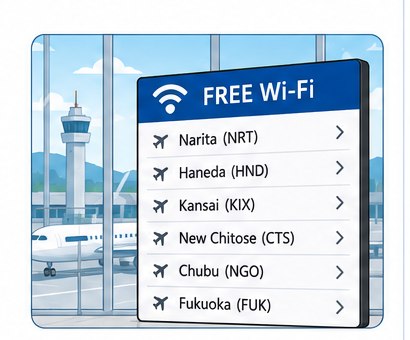
Use your hotel, airport or another clearly identified network. Save screenshots and the provider’s setup instructions before changing settings.

2

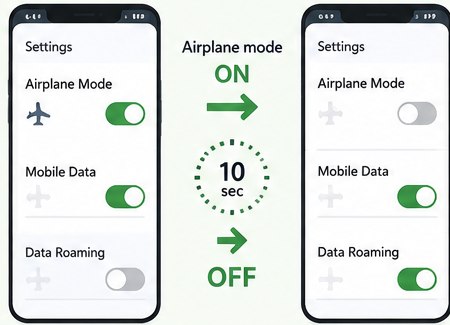
Check the selected data line and provider settings

Airplane mode and mobile data settings on a smartphone

Confirm that the intended SIM or eSIM is on, selected for mobile data and using the provider’s required roaming and APN settings.

3

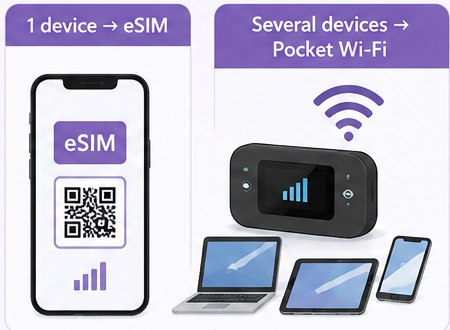
Restart once, then contact the provider

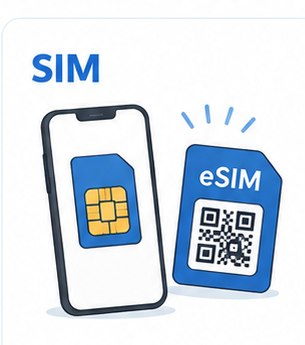
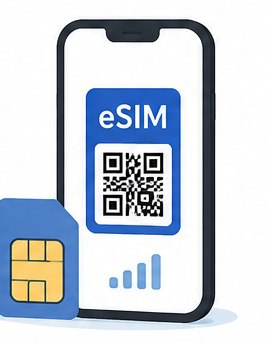
eSIM for one phone and pocket Wi-Fi for several devices

Toggle airplane mode briefly, restart once and test. Do not delete an eSIM unless support confirms that its installation code can be reused.
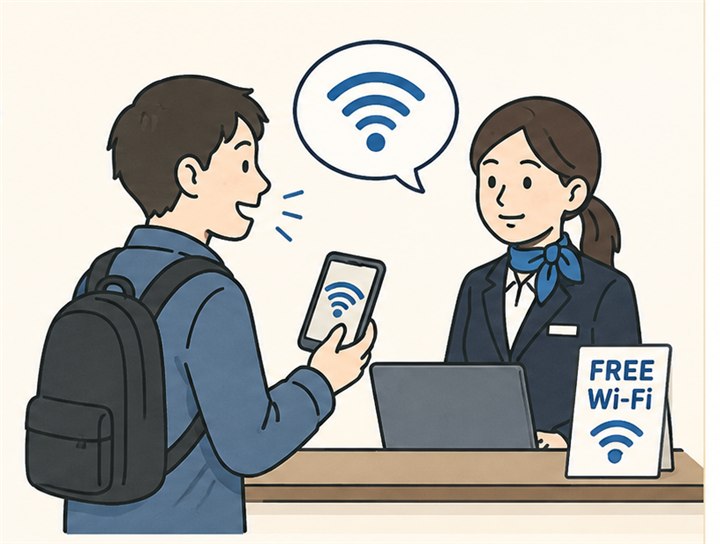
Traveler asking hotel staff whether free Wi-Fi is availableUseful Japanese phrase

Is free Wi-Fi available here?

無料Wi-Fiはありますか?

Muryō Wi-Fi wa arimasu ka?
Diagnose before you buy another connection

First decide whether the failure is the Wi-Fi login, the phone setting, the travel SIM or eSIM, or local coverage. Changing several settings at once makes the real problem harder to find.

Match the symptom

What exactly is not working?

Wi-Fi shows “connected” but pages do not load

Forget and rejoin the intended network, then follow the phone’s sign-in notification. If no login page appears, ask the hotel, airport or facility for its current network name and login address instead of accepting an unfamiliar portal.

Your travel eSIM has signal but no data

Confirm that the purchased line is switched on, selected for mobile data and using the provider’s required data-roaming and APN settings. Do not delete the eSIM unless its provider tells you to—some installation codes cannot be reused.

Your home SIM has no roaming data

Check the carrier’s official app or support page for an overseas-data plan, roaming permission, spending block and supported Japanese network. Roaming can create charges, so do not enable it without checking the price.

No service or only one location fails

Move outside a basement, tunnel or thick-walled building, then try automatic network selection once. A local outage or weak indoor coverage will not be fixed by buying the same type of connection again.

Change one thing at a time

Safe troubleshooting order

  1. 1
    Save the evidence

    Take screenshots of the signal, selected data line, APN and exact error while trusted Wi-Fi is available. Keep the order email and provider support link open.

  2. 2
    Check the selected line

    On dual-SIM phones, confirm which line supplies mobile data. Turn off automatic data switching temporarily if it keeps returning to the wrong line.

  3. 3
    Use the provider’s settings

    Compare every setting with the instructions for your exact plan and phone. Menu names differ between iPhone, Android brands and software versions.

  4. 4
    Restart once

    Toggle airplane mode briefly, restart the phone and test one ordinary webpage. Repeated resets or deleting the line can make support harder.

  5. 5
    Escalate without exposing secrets

    Contact the carrier or travel-data provider over trusted Wi-Fi. Share the order number and screenshots, but never send a password, card PIN or one-time security code.

Wi-Fi says connected

Make the sign-in page appear safely

Confirm the exact network name

Match the SSID with a sign, room card or staff instruction. A similar-looking network can belong to another floor, venue or an unsafe hotspot.

Stop the phone hiding the failure

Temporarily turn off mobile data while testing the Wi-Fi. Otherwise the phone may silently use your home or travel SIM and make a broken hotspot look successful.

Pause filters only for the login

A VPN, iCloud Private Relay, custom DNS or security filter can prevent a captive portal from appearing. Pause only the relevant feature, complete the facility’s sign-in, then restore your protection.

Do not enter secrets into an unfamiliar portal

Ask staff for the current login address when the page still does not open. Do not type a card number, email password or one-time code into an unverified page.

NO-INTERNET FAQ

Fix the common dead ends

Why does Wi-Fi show connected when nothing loads?

The radio connection can succeed before the hotspot accepts you. Confirm the network name, complete its sign-in page and test one ordinary webpage. If every device fails, ask the facility whether the hotspot is down.

Should I reset all network settings?

Not first. A full reset can remove saved Wi-Fi networks, VPN or APN settings and still not solve a provider outage. Save screenshots, check the selected line and provider instructions, then use a reset only when the device or provider support specifically recommends it.

Should I delete and reinstall the eSIM?

No, not without confirmation. Some activation codes cannot be reused. Keep the eSIM installed, connect to trusted Wi-Fi and contact the provider with screenshots and the order number.

Can a data-only eSIM call 110 or 119?

Do not assume it can. Internet calling is not the same as ordinary mobile voice service. Try a working voice-capable phone or ask hotel, station, shop or nearby staff to place the emergency call.

Need directions while still offline?

Ask hotel or station staff to write the destination in Japanese, photograph the route map, and keep your accommodation address visible. For an emergency, try 119 for ambulance or fire and 110 for urgent police help. If your phone cannot place the call, ask nearby staff or another person to call.

JNTO, Apple and Google support information checked September 19, 2026. Phone menus, roaming charges, captive portals, network selection and eSIM reinstallation rules vary by device, software and provider; the instructions for the exact service you purchased take priority.